Chapters
Git Workflow
For a visualization of Git workflow, check out this diagram.
How to clone a repository on your machine
Before cloning the repository, you will need the Local WP site export zip file, which can be found in the Projects folder in the True Market Google Drive (04 – Documentation > 2. Production Processes > Web Development > Projects).
- After downloading the zip file, drag and drop it into your Local WP window
- Change the Local site name, domain and path if necessary and click Continue and then Import Site
- Navigate to the theme folder (Ex: D:\Local Sites\hfhc-git-test\app\public\wp-content\themes\truemarket) and delete everything inside: run
rm -rf {*,.*}in the VS Code integrated terminal or your computer’s command prompt system- There is also a “Go to site folder” button for each site in Local to get you started
- In BitBucket, select repository you need to work on, or create it if it doesn’t exist yet.
- Click Clone on the matching Repository, then copy the URL, for example:

- Copy the link
- In VS Code, browse to your working directory (Ex: D:\Local Sites\hfhc-git-test\app\public\wp-content\themes\truemarket)
- In the integrated terminal, paste the link and add space and a period at the end, for example:
git clone https://LarocheJ@bitbucket.org/truemarket/aperian.git .This will ensure that the files are cloned into the root folder and will not create a subfolder - To start working, run
npm install, and thennpm run watch
Pulling
Before making any changes to your local copy, committing or pushing anything, make sure to pull the master branch to your local working directory.
git pull or use the Source Control VS code extension: 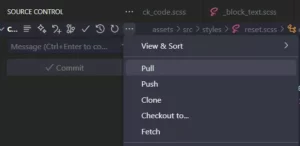
Pushing
Recommendations to keep in mind when pushing
Committing
- I recommend pushing your changes periodically, or after adding or modifying a significant feature.
- Keep your commits as focused and grouped as possible. If, for example, you are modifying the theme by changing some CSS, and also working on improving the function of a specific website feature, those should likely be two separate commits as the work is unrelated.
- Commit 1: Improve responsive styles on the homepage
- Commit 2: Add alphabetical filtering to business listing
- If you’re having trouble summarizing everything you’ve changed clearly and succinctly in a commit message, you’re probably doing more work than should be included in one commit.
Commit messages
- Write a meaningful commit message. Here is a good read on why this matters.
- Here are the main things to keep in mind from the article:
- Separate subject from body with a blank line
- Limit the subject line to 50 characters
Capitalize the subject line - Do not end the subject line with a period
- Use the imperative mood in the subject line
- A properly formed Git commit subject line should always be able to complete the following sentence:
If applied, this commit will Your subject line here - Wrap the body at 72 characters
- Use the body to explain what and why vs. how
How to push
In VS Code, click Source Control in the left sidebar > Stage all changes > Write a meaningful commit message > Commit > Sync Changes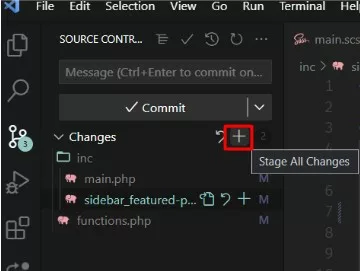
A note on databases
Please note that database changes are not tracked. If an updated database is required, you will need to export your database manually and send it to your co-worker, who will then need to overwrite their database. Please be careful with database changes and always create a backup before overwriting anything. When a site is on staging (or production, once the site is launched), use that as the source of truth. Never push your local database to a staging or production site.
How to push an existing Local WP project to Bitbucket
If you have an existing project that does not yet exist on Bitbucket, follow these steps.
Bitbucket
- In Bitbucket, create a project (depending on access levels you may need to get the lead developer to do this). Give it the name of the site you are working on and click Create project
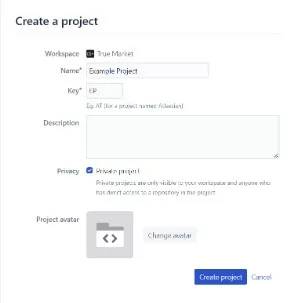
- Next, click Create Repository
- Give it the same name as the project and select No to include a
.gitignoreand click Create repository. For example: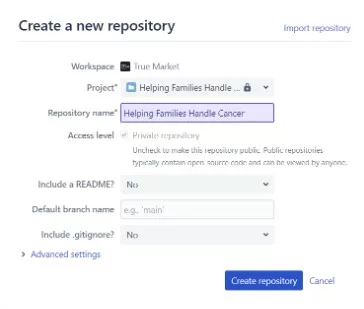
- Navigate to your project’s theme folder (usually /truemarket)
- Create a
.gitignorefile in the theme folder’s root directory if there is not already one:touch .gitignore- Feel free copy and paste from this .gitignore file
- In the terminal, run
git init, thengit add .(you can ignore all the warnings) - Copy the git remote add origin command from Bitbucket and run it in your terminal. For example:
git remote add origin https://[USERNAME]@bitbucket.org/truemarket/[REPOSITORY].git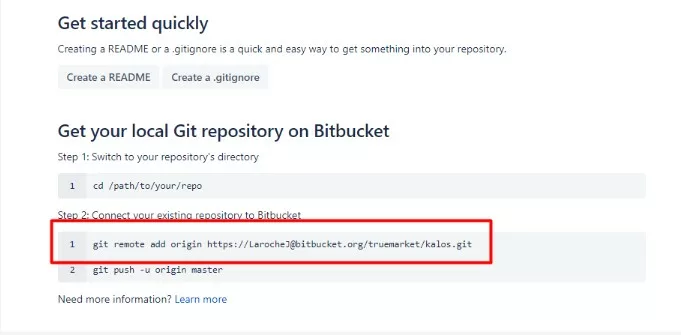
- Run
git commit -m "Initial commit" - Run
git push -u origin master - Refresh Bitbucket and your code should now be up
Local WP
- From the Local window, click on the project and start it, then right click your project and select Export
- Upload the project .zip folder to the Projects Folder
Troubleshooting
If you run into any of the errors below, follow the steps to resolve the problem. If you run into a new issue, add your solution below, see contributing. 😉
“ERESOLVE could not resolve While resolving: stylelin-config…” after running npm install
Run npm install –legacy-peer-deps
Folder access error when trying to delete the .git folder
Run rm -r .git in the project’s truemarket folder OR reboot your computer .
npm ERR! code EACCES
Simply run the command the terminal suggests: sudo chown -R 501:20 “/Users/yourusername/.npm
Pushing a change hangs forever
Re-install git
Getting errors when trying to run npm install
Run these commands (in order) to fix the issue:
rm -rf node_modules
rm package-lock.json
npm cache clean --force
npm install --force